

The A4 editor
Why there is an editor at all, and the page as it will print.
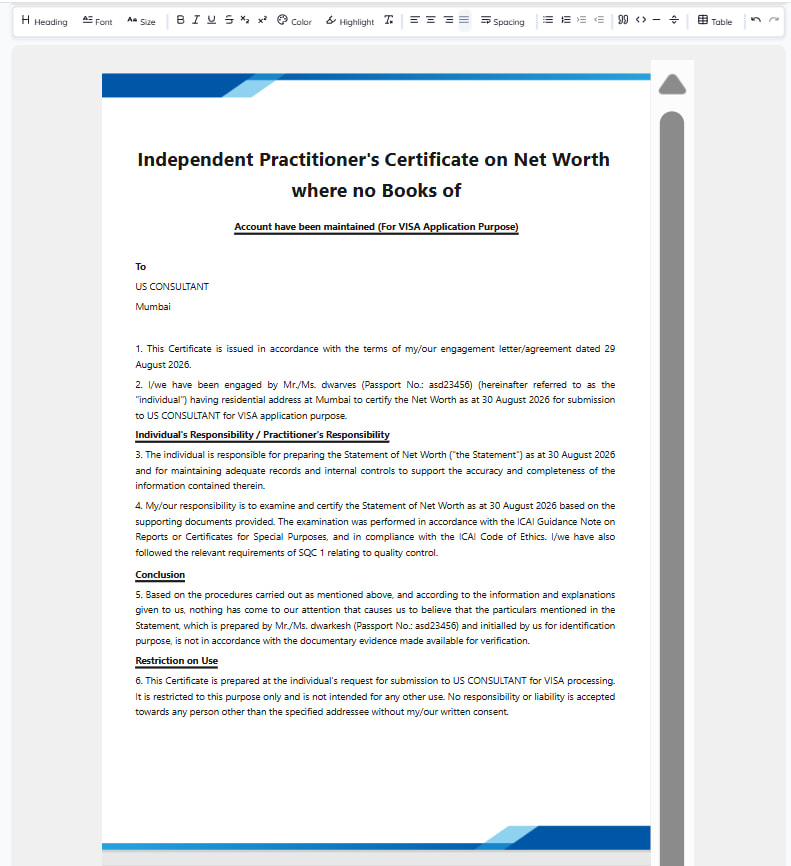
Submitting the wizard puts you in an editor showing the certificate on an A4 page, exactly as it will print.
Why there is an editor at all
No form covers every case. A certificate sometimes needs a sentence about the basis of a valuation, a note about which records were examined, or wording a particular embassy insists on.
Rather than adding fields nobody else needs, OptiVida builds the certificate from your figures and then hands you the page.
What you are looking at
The document at A4 width, with the margins that will apply. What you see is what the PDF holds — there is no separate print view to be surprised by.
Your firm's particulars, the client's details, the asset and liability schedules and the net worth total are already laid out. Most certificates need no editing at all.
The page breaks follow a few rules of their own, and the PDF follows the same ones. A heading or a schedule's caption moves to the next page with what follows it rather than ending a page, unless you put a page break straight after it, the lines moving with it would take more than half a page, or what follows could not start the next page with it. A schedule's header rows are never left alone at the foot of a page, unless the schedule is the first thing on its page and its first row is too tall to share a page with them, and they are not repeated on the pages it continues onto. A paragraph split across pages keeps at least two lines on each page, so one of three lines or fewer moves whole, and the page after the split is measured from the lines carried onto it. Certificates saved before 30 September 2026 follow the same rules, and their signature block can still end a page. See Exporting the PDF for the full list.
Save draft and Preview sit at the top of the page, and Back and Export PDF in the bar along its foot. Preview shows the PDF as it would export, without saving anything or spending a credit.
What to change, and what not to
- Safe to changeWording
Narrative paragraphs, the basis of preparation, a note about what you examined, formatting.
- Think firstFigures in the schedules
You can type over a number, but the schedule then disagrees with the wizard it came from.
Warning
Correcting a figure here changes the printed document but not the certificate's underlying data, so the total will not recompute and the next version will not carry your edit. If a figure is wrong, go back through the wizard. Going back through it and choosing Update certificate rebuilds the text from the wizard's figures and replaces any wording you changed here; the page margins and letterhead are kept.
Saving
Save draft keeps your edits. Until you use it, Unsaved changes shows beside it, and leaving the editor loses them. Exporting saves them too. Reopening the certificate brings back what you last saved.
Nothing is charged for editing, and nothing for exporting. The credit was spent when the certificate was created, once, however many times you export.
Getting back to it
Edit, on the certificate's own page. You return to the same editor with the content you last saved.
Tip
If the figures need to change rather than the words, use the wizard — see Finding, versioning and deleting.
Last updated 2 Oct 2026
Still stuck? Ask us