

The review workspace
The seven tabs, autosave, and the difference between saving and generating.
Where a CMA report is actually prepared. Seven tabs, and a grid you work across.
The header
The financial year as the title, with the report's status beside it and the client and bank template beneath. Reports and the client's name, above the title, lead back to those lists. The seven tabs run along its foot.
The footer
The bar along the foot of the page says whether your work is saved and whether validation passed, or how many errors and warnings it found. Generate report sits at its right, beside Save.
The seven tabs
- Form I
Facility details, from the sanction letter. Not from Tally.
- Form II – Operating
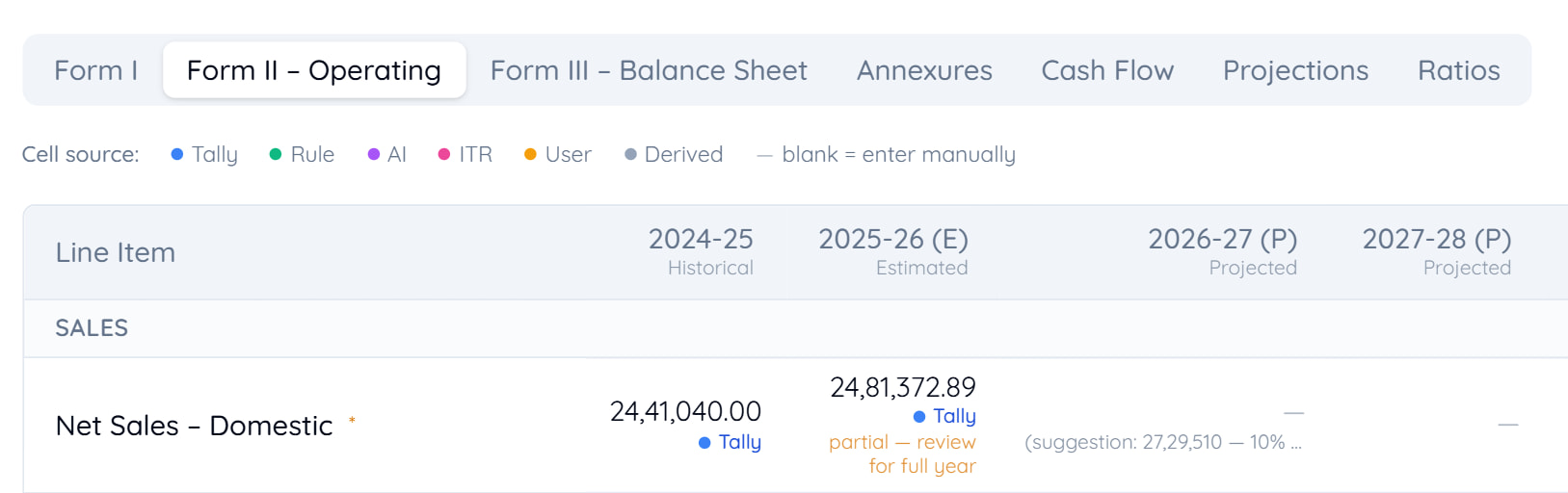
The operating statement across all your years.
- Form III – Balance Sheet
Analysis of the balance sheet.
- Annexures
Cost of project and means of finance, capacity utilisation, depreciation.
- Cash Flow
- Projections
The forward years.
- Ratios
Computed from everything else.
Autosave
Your work saves shortly after you stop typing, and the footer says when. Save saves at once if you would rather not wait, but there is nothing to remember.
If the connection drops, OptiVida says so and keeps your changes queued rather than losing them, then sends them when it reconnects.
Tip
Saving is not generating
- SavedFree, continuous
Your work is kept. Come back whenever.
- GeneratedCosts credits
The Excel and PDF are produced. A new version each time.
Warning
Every generated version is charged, unlike a certificate. Work in the workspace until it is right, then generate — rather than generating to see how it looks.
Errors and warnings
Validation runs as you work.
- ErrorsBlock generation
Something is wrong that would make the report incorrect.
- WarningsDo not block
Something worth your eye. They do not mean the report is wrong.
A warning is a prompt to look, not a fault to clear. Some are expected — a genuinely unusual ratio in an unusual year, for instance.
Tip
Unmapped ledgers
Where OptiVida could not confidently place a ledger, it says so rather than guessing. The review panel lists them for you to assign.
Nothing is silently dropped, so an unmapped ledger is a figure not yet in your report.
Tip
See Unmapped ledgers.
Moving around the grid
Arrow keys, Tab and Enter move between cells. Right-click — or long-press on a touch screen — opens a cell's details, showing where its figure came from.
Last updated 25 Sept 2026
Still stuck? Ask us